SmartSchool OS — AI-Powered School Operating SystemSmartSchool OS — AI-Powered School Operating System
FeaturesPricingAboutDocsSupport
LoginStart free
SmartSchool OS — AI-Powered School Operating SystemSmartSchool OS — AI-Powered School Operating System

One AI-powered operating system for school reports, exams, analytics, and growth — replacing spreadsheet chaos with clarity.

Start free

Product

  • Features
  • Pricing
  • Documentation

Resources

  • Get started
  • Support
  • About

Legal

  • Privacy Policy
  • Terms of Service

© 2026 SmartSchool OS. All rights reserved.

Powered by Globull

Documentation/Getting started

Inviting staff and teachers

Bring your entire team onto SmartSchool OS in minutes. Send email invitations, assign roles, or bulk-import staff from a spreadsheet.
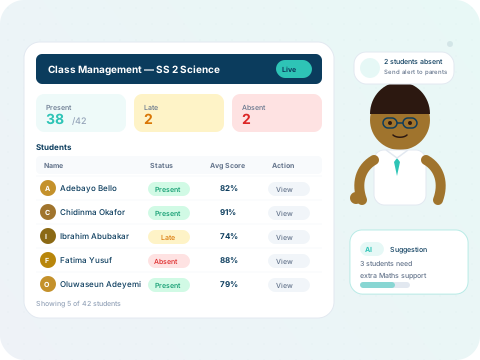
Teacher dashboard for class and staff management

Sending email invitations

The fastest way to onboard staff. Each invitee gets a signup link that automatically connects them to your school workspace.
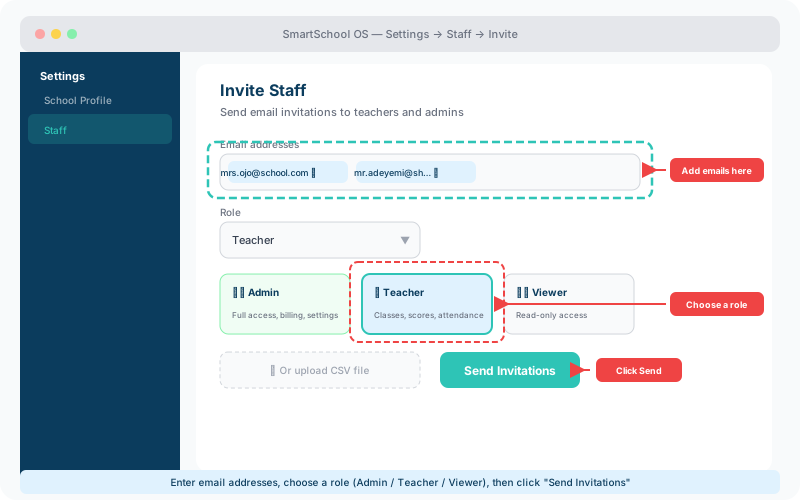
  1. 1Navigate to Settings → Staff → Invite.
  2. 2Enter one or more email addresses.
  3. 3Select a role for each invitee (Admin, Teacher, or Viewer).
  4. 4Click Send — invitees receive an email with a signup link.
Invite staff screen showing email entry field, role selector with Teacher highlighted, and Send Invitations button
The staff invitation form — enter emails, choose a role, and click Send Invitations.

Understanding roles

Each role controls what a staff member can see and do within your workspace:

🛡️

Admin

  • Billing & storage
  • School settings
  • All modules
  • Staff management

📚

Teacher

  • Assigned classes
  • Score entry
  • Attendance marking
  • Report viewing

👁️

Viewer

  • Dashboard view
  • Report viewing
  • No edit access
  • Read-only data

Bulk import via CSV

For larger institutions with dozens of staff, upload a CSV file with columns for name, email, and role. The system validates entries, flags duplicates, and shows a preview before sending batch invitations.

💡 Tip

Download our CSV template from the Invite page to ensure your columns are correctly formatted.

Deactivating accounts

When staff leave your institution, deactivate their account from the Staff panel. Deactivated accounts lose access immediately, but their data contributions — scores, attendance records, and reports — are fully preserved.

⚠️ Important

Deactivation is reversible. If a staff member returns, simply reactivate their account to restore full access.


← Workspace setupNext: Configuring terms →