SmartSchool OS — AI-Powered School Operating SystemSmartSchool OS — AI-Powered School Operating System
FeaturesPricingAboutDocsSupport
LoginStart free
SmartSchool OS — AI-Powered School Operating SystemSmartSchool OS — AI-Powered School Operating System

One AI-powered operating system for school reports, exams, analytics, and growth — replacing spreadsheet chaos with clarity.

Start free

Product

  • Features
  • Pricing
  • Documentation

Resources

  • Get started
  • Support
  • About

Legal

  • Privacy Policy
  • Terms of Service

© 2026 SmartSchool OS. All rights reserved.

Powered by Globull

Documentation/Student management

Class assignment

Organise students into classes, assign form teachers, and manage end-of-year promotions — all from a single dashboard.
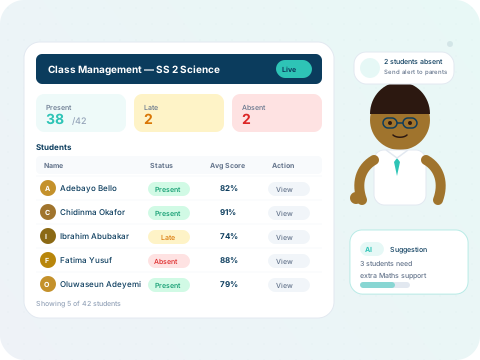
Class management dashboard with teacher assignments

Creating classes

Classes live under departments and serve as the primary organising unit for students, teachers, and assessments.
  1. 1Go to Classes → Create Class.
  2. 2Choose the department (e.g. Sciences, Junior School).
  3. 3Set the class name, label (e.g. JSS 1A), and student capacity.
  4. 4Assign a form teacher who will manage attendance and reports.
  5. 5Save — the class is ready for student assignment.
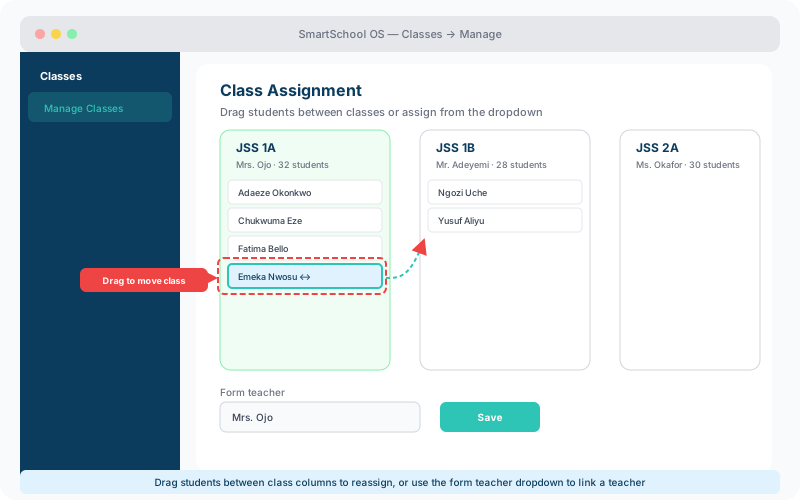
Class assignment dashboard showing class columns with students and drag-to-move functionality
The Class Assignment panel — drag students between columns, or use the form teacher dropdown below.

Assigning students to classes

Assign students individually from their profile, or use bulk assignment to move an entire group at once. SmartSchool OS includes built-in safeguards:

No double-assignment

A student cannot belong to two classes simultaneously.

Capacity tracking

Real-time occupancy vs. limit is shown on every class card.

Bulk move

Select multiple students and reassign them to a different class in one click.

End-of-year class promotion

At the end of a session, the promotion wizard moves students to the next class in bulk. You retain full control:

  • Promote an entire class to the next level with one click.
  • Hold back specific students who need to repeat.
  • Move students across streams (e.g. from Science to Art).
  • Review the promotion preview before committing.

💡 Tip

Always finalise report cards and export results before running promotions. Promoted students move into the new session context.

Timetable integration

SmartSchool OS focuses on assessment and reporting, but class metadata — subjects, teachers, and periods — is structured for seamless integration with external timetabling tools via the REST API.


← Student enrolmentNext: Attendance tracking →