SmartSchool OS — AI-Powered School Operating SystemSmartSchool OS — AI-Powered School Operating System
FeaturesPricingAboutDocsSupport
LoginStart free
SmartSchool OS — AI-Powered School Operating SystemSmartSchool OS — AI-Powered School Operating System

One AI-powered operating system for school reports, exams, analytics, and growth — replacing spreadsheet chaos with clarity.

Start free

Product

  • Features
  • Pricing
  • Documentation

Resources

  • Get started
  • Support
  • About

Legal

  • Privacy Policy
  • Terms of Service

© 2026 SmartSchool OS. All rights reserved.

Powered by Globull

Documentation/Timetable & scheduling

Timetable & scheduling

Create weekly timetables for every class with drag-and-drop, automatic conflict detection, and instant publishing.
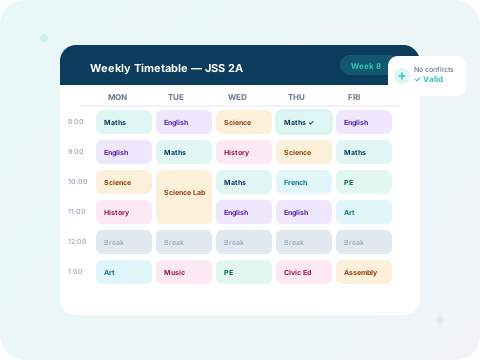
SmartSchool OS weekly timetable grid with color-coded subjects

What you'll learn:

1. Create timetable
2. Add class slots
3. Detect conflicts
4. Publish schedule

Step 1 — Create a new timetable

Navigate to Timetable → New Timetable. Select the class, choose the term/session, and set the daily time range (e.g., 8:00 AM – 2:00 PM).
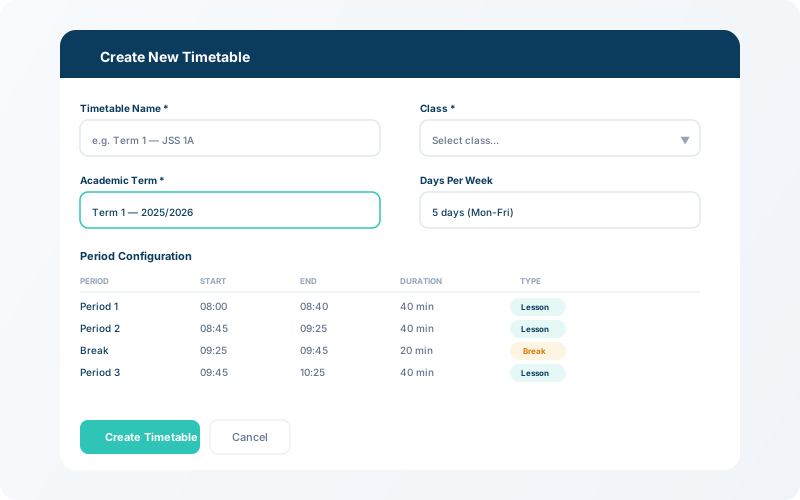
Timetable creation form with class selector, term picker, and time range inputs
Create a new timetable — select the class, term, and daily time range.

Step 2 — Add subjects and assign teachers

Click on any empty slot in the weekly grid to add a class period. Choose the subject and assigned teacher. The system will automatically highlight conflicts if a teacher is double-booked.

💡 Tip

Subjects are colour-coded automatically — making it easy to spot distribution imbalances at a glance.
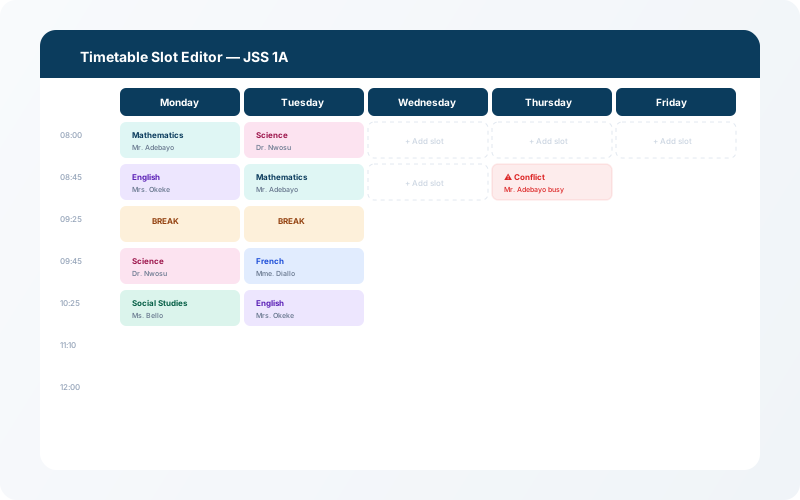
Timetable weekly grid with a slot being edited — subject and teacher dropdown visible
Click a slot to assign a subject and teacher. Conflicts are flagged in real time.

Step 3 — Publish and share

Once your timetable is complete and conflict-free, click Publish. Students and teachers will see the schedule immediately in their dashboards. You can also export a printable PDF version.
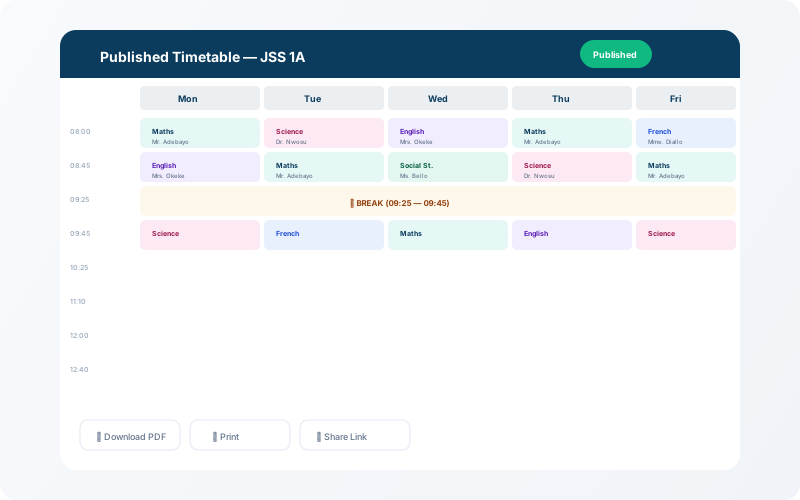

Published timetable view with print and export buttons
The published timetable — visible to teachers and students, with PDF export.